Editing tags
There are two ways to edit tags: manually file by file or multi-file.
To edit a tag manually, double-click a file in the file list and edit the tag in the pop-up window. The pop-up window shows file information (bitrate, play time, etc.) and allows you to perform the following commands:
- Save changes of selected files
- Cancel command
- Remove tag from selected file
- Save changes to selected file and edit next or previous file
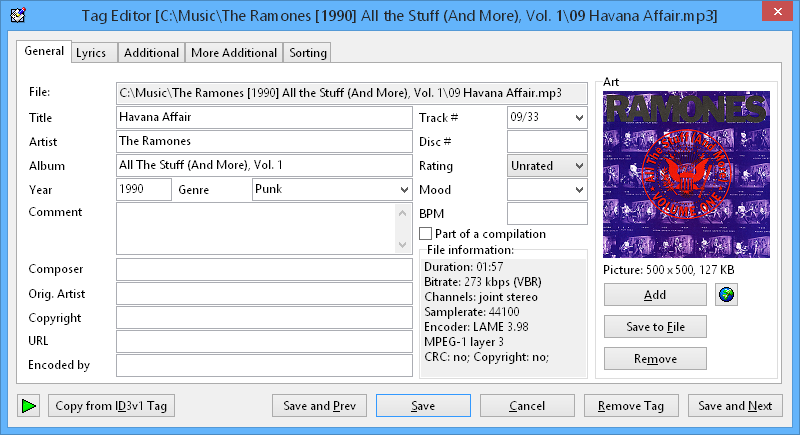
Tag&Rename Manual Tag Editor window.
Under the Multi File Tag Editor (Ctrl+F4) tab you can easily write, create or remove tags from selected files. Click on the white boxes (to the left of the tag field names) that you want to edit, fill-in the appropriate information and click the Save Tags button. You may also enable one of the case functions, which will convert all tag fields to your case preference.

Tag&Rename Multi File Tag Editor options tab.
Note: To edit all additional supported tag fields in selected files, click on the Edit All Supported Tag Fields button in the Multi File Tag Editor (Ctrl+F4) or use the Ctrl+F5 hotkey.
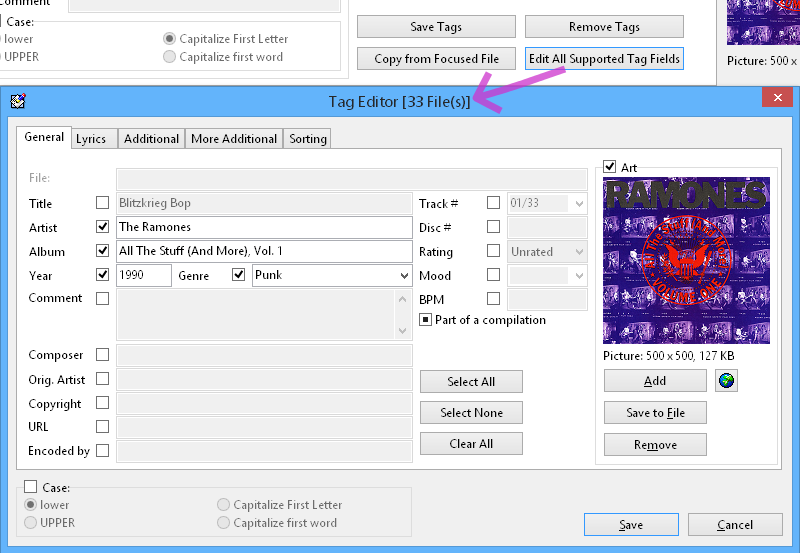
Tag&Rename All Supported Tag Fields in the Multi File Tag Editor.
Multi File Tag Editor buttons:
Save Tags - Save changes to selected files.
Remove Tags - Remove tag information from selected files. (This operation cannot be undone.)
Copy from Focused File - Click this button to copy tag information from the file with the focus to Multi File Tag Editor fields.
Edit All Supported Tag Fields - Edit all tag fields supported by Tag&Rename.